

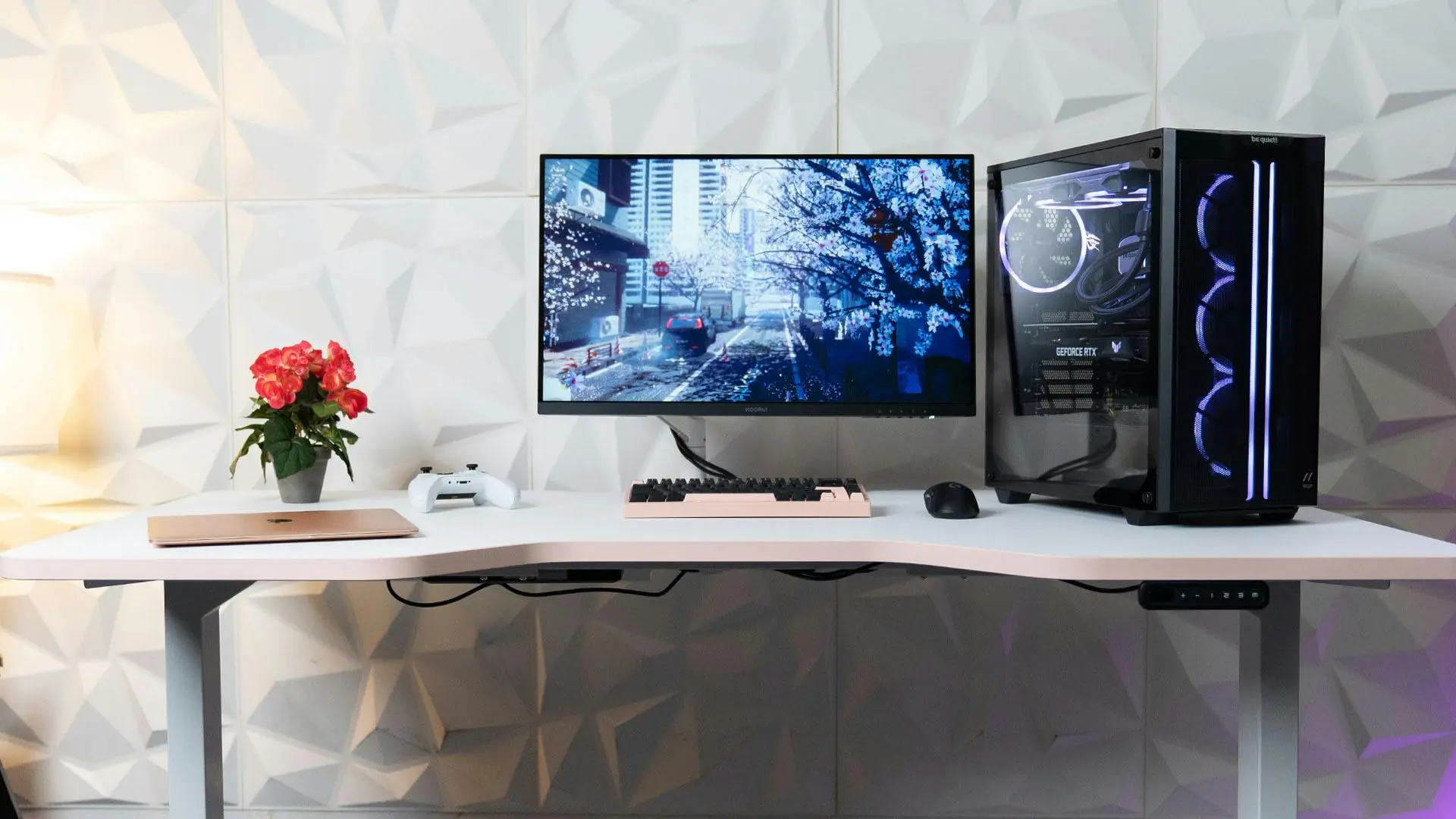
Kabelmanagement im 5 steps
- Plan your cable layout: Bevor Sie mit der Verwaltung Ihrer Kabel beginnen, Planen Sie das Layout Ihres Setups. Determine where each device will be placed and how you want to route the cables. This will help you identify the optimal cable management solutions for your specific setup.
- Sort cables by function: Start by separating the cables by the function of the devices they connect. For example, group all the power cables together, all the video cables together, and all the audio cables together. This will make it easier to identify each cable and prevent tangles.
- Use cable sleeves: Cable sleeves are a great way to keep your cables organized and out of sight. They come in a variety of colors and lengths to match your setup and can be easily cut to size.
- Route cables behind your desk: Routing cables behind your desk will keep them out of sight and prevent tangling. Use cable clips or adhesive cable mounts to secure the cables to the back of your desk.
- Consider using a cable tray or channel to keep them organized. These solutions attach to the underside of your desk and provide a designated space for your cables to run through.
Gaming Cable Management for your Setup
Gaming setups typically have more cables to manage than home office setups, due to the variety of devices involved such as monitors, gaming keyboards, gaming mice, gaming headsets, and consoles. Here are some additional tips for managing cables in your gaming setup:
- Mount a PC holder: If you own a stationary gaming PC, it could be a great idea to explore the option of mounting a PC holder underneath your desk. By doing so, you can bring the PC closer to your desk periphery and use shorter cables, resulting in a tidier setup. Shorter cables, cleaner setup – it’s that easy!
- Use wireless devices: Consider using wireless devices, such as a wireless keyboard and mouse, to eliminate the need for cords altogether. However, make sure to do proper research when selecting wireless devices for gaming. There are only a handful of models out there that are suitable for fast paced online games where input delay can decide victory or defeat.
- Deploy monitor arm(s): Incorporating a monitor arm into your setup can enhance your cable management system and provide added flexibility. With built-in cable management features, monitor arms allow you to easily guide cables away from your monitor while maintaining a sleek appearance. This can prove especially useful during intense gameplay, where you may need to pull the screen closer to you without the risk of damaging or disconnecting any cables.